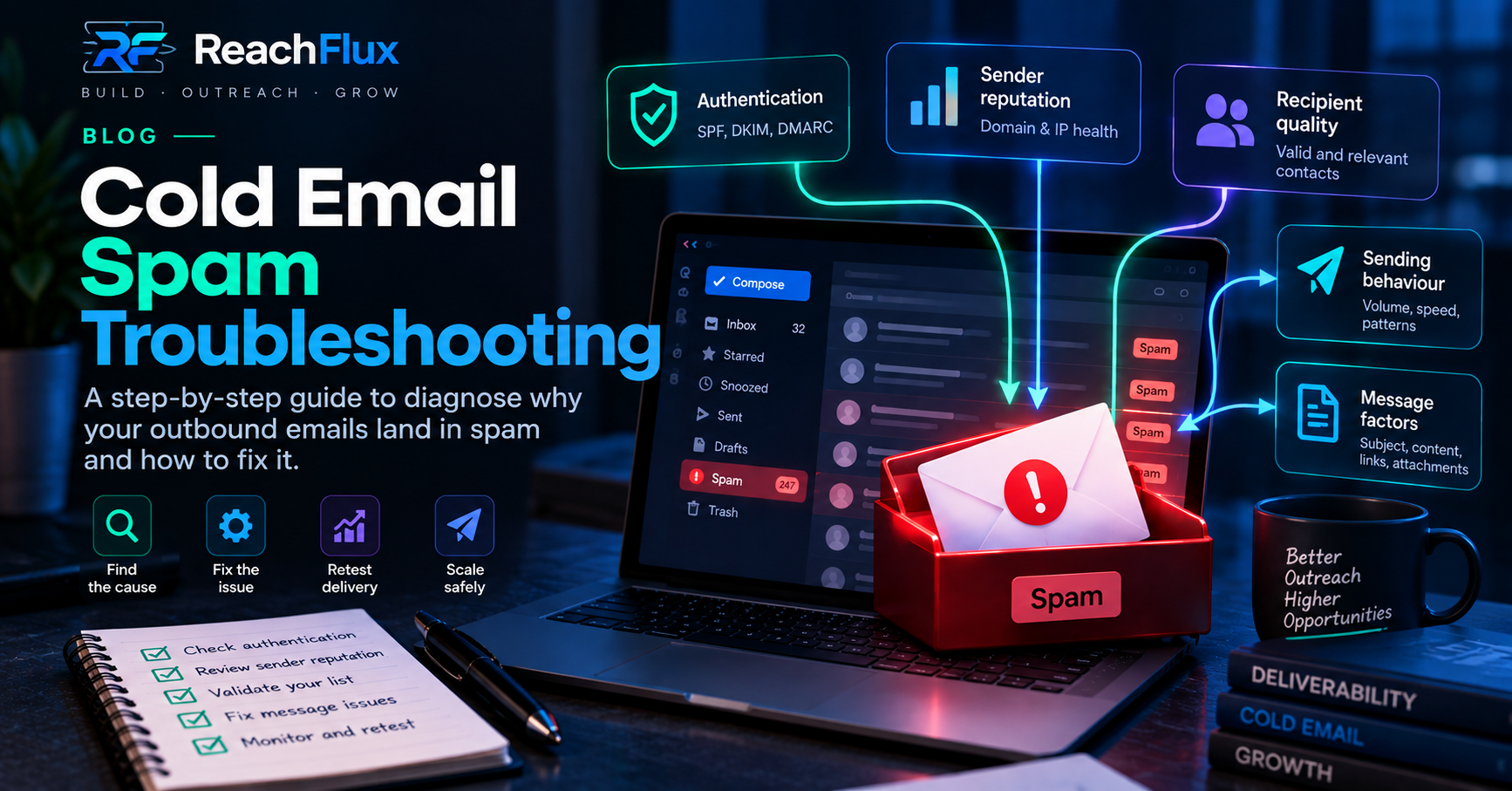
When cold emails start landing in spam, the fastest reaction is often the least useful one: rewrite the copy, switch domains, lower the daily limit, or blame the sending tool. Any of those changes might alter the outcome, but they do not tell you what actually failed.
A better approach is to treat deliverability like a diagnosis. Start with the parts you can verify. Confirm that mail is authenticated. Look at domain and sender reputation. Check whether failures are concentrated around one mailbox, one provider, one campaign, or one segment of recipient data. Read SMTP and delivery errors instead of reducing them to a generic “failed” count.
That sequence matters because spam placement is rarely controlled by one setting. Receiving systems evaluate a combination of identity, history, recipient response, infrastructure and message behaviour. Your job is not to find a magic switch. It is to narrow the problem until the evidence points to the part of the system that needs attention.
Change one layer only after you have evidence that the layer is weak. If you change the domain, copy, volume, sender accounts and recipient list at the same time, you may get a different result without learning which change mattered.
Start with evidence, not inbox-placement guesses
“My emails are going to spam” can describe several different situations. One sender may have a reputation problem. Another may have broken DKIM after a DNS change. A campaign may be hitting stale addresses. A provider may be temporarily throttling traffic. Or Gmail may be filtering messages while your own dashboard still shows successful SMTP delivery.
Before changing anything, define the failure more precisely. Ask when it started, which sender accounts are affected, which recipient providers are affected, whether the problem appears on every campaign, and whether there were recent changes to DNS, sending volume, domains, lists or copy.
Scope
Is the issue affecting every sender, one mailbox, one domain or one campaign?
Destination
Does the problem appear mainly at Gmail, Outlook, Yahoo or across providers?
Timing
Did spam placement begin after a volume increase, DNS change or new recipient source?
Signals
Did bounces, complaints, temporary failures or negative replies change at the same time?
This first pass stops you from treating a local problem as a system-wide failure. If one sender behaves badly while nine others remain stable, replacing all ten mailboxes makes little sense. If Gmail is the only destination showing a problem, provider-specific diagnostics deserve more attention than a complete rewrite of your campaign.
Step 1: verify SPF, DKIM and DMARC before touching campaign copy
Authentication is one of the easiest layers to verify and one of the worst layers to assume is correct. A DNS record that worked last month can be changed, duplicated, removed or misaligned. A third-party sender can be added without being included in SPF. A DKIM selector can stop matching the key expected by the sending service. DMARC can exist while alignment still fails.
Google currently requires all senders to Gmail to use SPF or DKIM, while higher-volume senders must use SPF, DKIM and DMARC. Yahoo also requires stronger authentication for bulk senders. Microsoft has introduced SPF, DKIM and DMARC requirements for domains sending more than 5,000 messages per day to Outlook.com consumer addresses. These requirements are not a guarantee of inbox placement, but authentication failure gives receiving systems less reason to trust the identity behind a message.
Authorised sending path
Check that the service or infrastructure actually sending the message is authorised by the domain's SPF policy.
Message signature
Confirm that outgoing mail is being signed and that the public key for the active selector resolves correctly.
Alignment
Confirm that the visible From domain aligns with a passing SPF or DKIM identity as required by DMARC.
Supporting records
Check forward and reverse DNS where relevant, plus any recent DNS changes that could affect the sending path.
Do not stop at “the records exist.” Send a real message through the same account and path used by the campaign, then inspect the authentication results. The question is whether the message that actually reached the recipient passed the checks you expected.
Looking at DNS alone proves only what is published. It does not prove that the campaign message was signed correctly, used the expected return path, or aligned with the visible From domain. Validate the message as received.
Step 2: inspect domain and sender reputation
Passing authentication does not mean a sender has a healthy reputation. Authentication answers questions about identity. Reputation reflects how receiving systems have learned to treat traffic associated with a domain, IP or sending pattern.
For Gmail traffic, Google Postmaster Tools can expose useful signals such as spam rate, authentication, domain reputation, IP reputation and delivery errors when enough data is available. That makes it useful for diagnosing a pattern that your outreach application cannot see by itself. A campaign dashboard can tell you that a message was accepted by the receiving server; it cannot promise where that provider placed the message afterward.
Reputation problems often show up as patterns rather than one obvious error. A sender that used to perform normally may begin receiving more temporary failures. A domain may show weaker reputation after a sharp change in volume or recipient response. Messages may be accepted but increasingly filtered. These are reasons to slow down and investigate, not reasons to push harder.
Compare the affected sender against a healthy sender using the same campaign. If the healthy sender reaches the same provider normally while the affected sender does not, you have narrowed the problem substantially. If both degrade at the same time, inspect shared factors such as the domain, recipient source, copy or sending pattern.
Step 3: audit recipient quality before blaming the mailbox
A technically clean sending setup can still produce poor deliverability when the recipient data is weak. Old addresses, malformed addresses, role accounts, recycled mailboxes and poorly targeted contacts can create bounce and complaint patterns that damage the campaign.
This is why list quality belongs inside deliverability troubleshooting. If the problem appeared after importing a new dataset, isolate that segment. Compare bounce behaviour against previous recipient sources. Check whether a specific company type, geography or data provider is creating a disproportionate share of failures.
Verification helps remove obvious address problems, but verification is not permission and it is not a guarantee that a person wants the message. A valid address can still belong to someone who sees no relevance in the outreach and reports it as spam.
An address can be technically valid and commercially wrong. Deliverability improves when recipient preparation includes both address quality and targeting. Do not use a larger sending infrastructure to compensate for a weak list.
Step 4: review volume changes, bursts and sender concentration
Look at what changed before the problem appeared. Did one mailbox suddenly send far more than it normally does? Did several campaigns begin at the same time? Did you move from a controlled schedule to a large burst? Did a newly created account immediately receive the same workload as established senders?
Google explicitly advises senders to increase volume gradually and avoid sudden spikes. That is a useful operational principle even when your campaign is far below Google's bulk-sender threshold. A provider's technical limit is not the same as a sensible cold email target.
If the business needs more outbound capacity, the answer is not automatically “send more from the same inbox.” Properly configured additional senders can distribute legitimate workload, but only after the existing campaign is healthy. Distribution spreads capacity; it does not repair a bad list, broken authentication or damaged reputation.
Continue reading Cold email sending limits per day: how much should you actually send? Separate provider ceilings from real sender capacity before increasing outbound volume.Step 5: read SMTP and provider errors as diagnostic evidence
“Failed” is not a diagnosis. Delivery errors contain information. A permanent invalid-recipient response points toward recipient quality. A temporary rate or policy response points toward a different problem. An authentication-related rejection belongs back at the infrastructure layer. A mailbox-full response is not the same as a reputation failure.
Group errors by type and destination provider. If a large share of Gmail traffic returns a similar policy response while Outlook traffic remains normal, that is useful evidence. If only one sender receives rate-related failures, compare that sender's workload with the rest of the pool.
Permanent address failure
Investigate the recipient source and remove addresses that should not be retried.
Temporary failure
Do not treat every temporary response as permission to retry immediately at the same pace.
Authentication or policy failure
Trace the sending identity, DNS configuration and provider requirement before resuming volume.
Rate-related response
Reduce pressure, inspect sender concentration and avoid turning a warning into repeated failures.
Keep the original provider response wherever possible. The exact enhanced status code and text can be more useful than the simplified label your application displays.
Step 6: isolate whether the problem belongs to a sender, domain or campaign
Multi-account outreach gives you a useful diagnostic advantage: comparison. If sender A and sender B use the same campaign and recipient profile but only sender A degrades, the campaign itself becomes a less likely explanation. If every sender under one domain degrades together, inspect shared domain and DNS factors. If senders across multiple domains fail only on one campaign, inspect the recipient segment and message.
Compare senders
Find out whether one mailbox is behaving differently from the rest of the sender pool.
Compare domains
Look for a shared domain-level pattern across multiple mailboxes.
Compare campaigns
Check whether the problem follows one message, one list or one campaign configuration.
Compare destinations
Separate Gmail, Outlook, Yahoo and other provider behaviour instead of averaging everything together.
The goal is controlled isolation. You want fewer possible causes after every comparison, not more simultaneous changes.
Step 7: inspect message factors after infrastructure and reputation
Content matters, but it is easy to overstate it. There is no reliable universal list of “spam words” that explains every placement problem. Receiving systems evaluate far more than whether a subject contains a particular phrase.
Still, the message deserves inspection. Check whether the From identity is clear, whether the subject accurately reflects the email, whether the body contains unnecessary tracking or redirect behaviour, whether links point to domains you control and trust, and whether the message looks substantially different from the traffic the sender normally produces.
Also check whether the message is actually relevant to the recipient. A technically clean email that repeatedly reaches people who do not want it can create negative signals. Copy and targeting are connected here: the more mismatched the audience, the more likely the campaign is to generate complaints, deletions and negative replies.
If DKIM is failing or a new list is producing hard bounces, rewriting the opening sentence does not address the real problem. Fix measurable infrastructure and data issues first. Then test message changes deliberately.
Step 8: understand what spam-rate data can and cannot tell you
Google recommends keeping user-reported spam in Postmaster Tools below 0.1% and avoiding 0.3% or higher. Yahoo tells bulk senders to keep complaint rates below 0.3%. Those figures are useful warning lines, but they should not be misunderstood as targets. Lower is better.
There is another important limitation: a low reported spam rate does not always mean placement is healthy. Google explains that if many messages are already being automatically filtered to spam, fewer recipients see them in the inbox and therefore fewer people can manually mark them as spam. In that situation, the reported complaint rate can look deceptively low.
That is why spam rate should be read alongside domain reputation, authentication and delivery errors. One dashboard number cannot describe the entire sending system.
A complaint spike is a reason to investigate immediately. A low complaint rate is useful, but it does not overrule poor domain reputation, authentication failures, provider rejections or evidence that messages are already being filtered.
Step 9: build a recovery plan instead of continuing at full volume
Once you identify a real warning signal, stop treating the campaign as business as usual. Recovery starts by removing the source of the problem. That may mean correcting authentication, pausing an unhealthy sender, removing a poor recipient segment, reducing an abrupt workload, or fixing a campaign configuration that created repeated provider errors.
After the correction, do not jump straight back to the previous workload. Resume in a controlled way and watch whether the same symptoms return. Reputation does not necessarily recover the moment a DNS record is fixed or a bad list is removed. Google notes that changes in spam classification can take time to reflect improved behaviour.
The important part is that each step has a reason. “Pause everything for a week” is not a diagnosis. “Move to a new domain” is not a diagnosis. A recovery plan should connect the corrective action to evidence you actually found.
Cold email spam troubleshooting checklist
If you need a repeatable process for your next deliverability incident, use the same order every time. The sequence prevents random changes and gives you a record of what was actually checked.
Preventing the same spam problem from returning
Troubleshooting is useful, but the better outcome is an outreach workflow that makes problems easier to spot before they become widespread. That means keeping sender configuration consistent, validating recipient data before campaigns, avoiding abrupt volume changes, and retaining enough campaign history to compare healthy and unhealthy periods.
It also means treating replies and lead outcomes as part of the system. A campaign that technically sends without errors but produces poor-fit conversations is still telling you something about the audience. Deliverability and targeting should not live in separate worlds.
ReachFlux is designed around that operational view. You connect your own sender accounts, import your own prospect data, validate recipients, distribute campaign workload, track activity, manage replies and move resulting leads through the workflow. It does not guarantee inbox placement, and it does not replace provider rules. The value is having the sending and follow-through context in one place so campaign problems are easier to investigate.
When outbound emails land in spam, resist the urge to make five changes at once. Verify identity. Inspect reputation. Check the list. Review volume. Read provider responses. Compare senders. Then change the layer that the evidence actually points to.
Deliverability troubleshooting should reduce uncertainty. Every check should either confirm a layer is healthy or move it higher on your list of likely causes. That is far more useful than searching for one universal “spam fix.”
Provider references used for this guide
Current sender requirements and troubleshooting guidance were checked against Google Gmail sender guidelines and Postmaster Tools documentation, Yahoo Sender Hub best practices, and Microsoft's published Outlook.com requirements for high-volume senders. Provider requirements can change, so verify the latest documentation when diagnosing a live sending issue.
Diagnose the campaign before adding more volume.
ReachFlux keeps sender accounts, recipient preparation, campaign activity, replies, analytics and lead follow-through connected so outbound problems are easier to investigate.