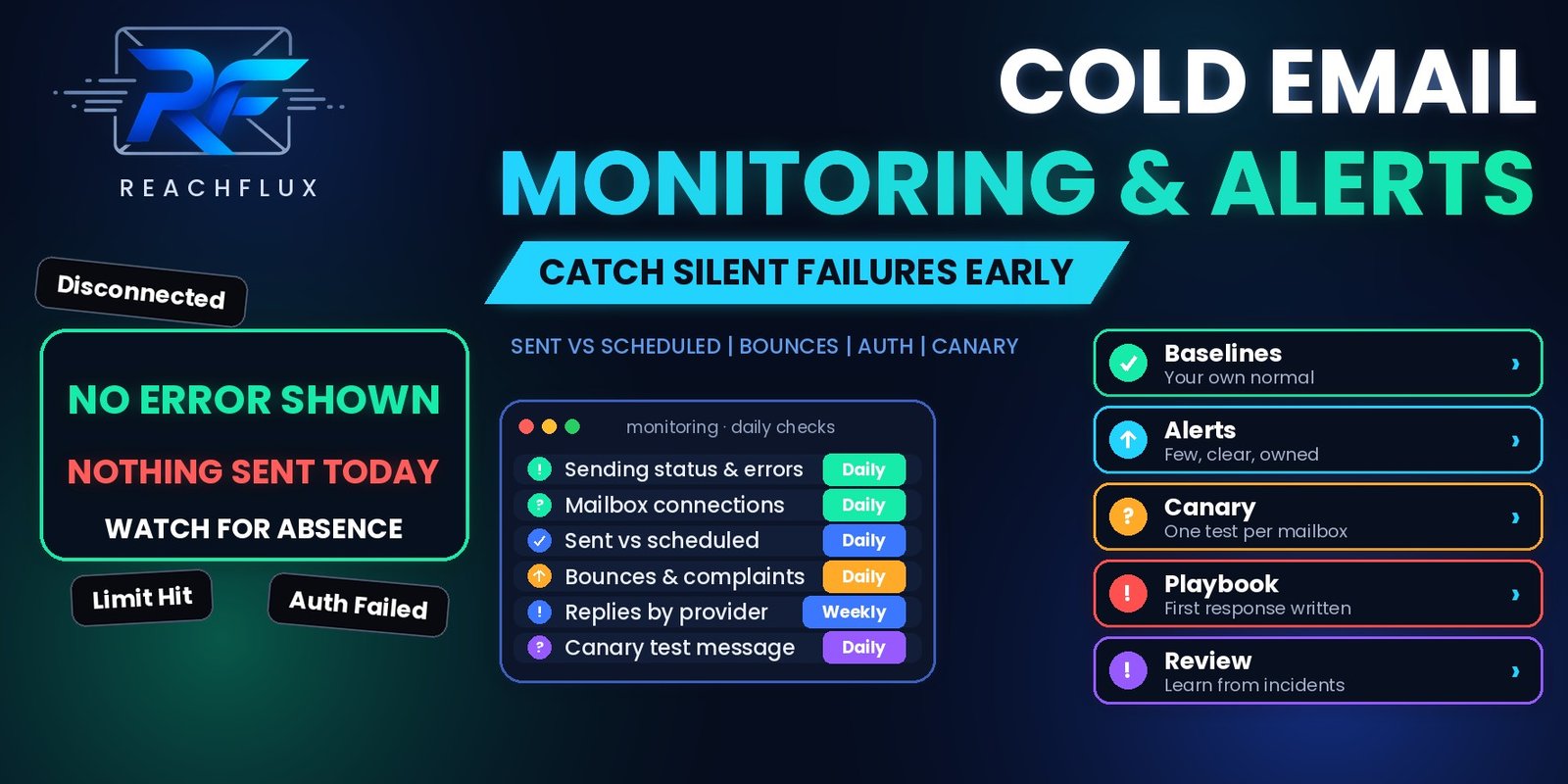
How do you stop cold email campaigns from failing silently?
Monitor a small set of signals every day, compare them against your own normal levels, and write down the thresholds that trigger action. The signals that matter are sending status and errors, mailbox connection health, bounces and complaints by sender, replies by provider, queue and schedule health, and DNS and authentication. Add a daily test message to your own mailboxes as a canary, and you will catch most silent failures within a day instead of a month.
Campaigns rarely fail with a loud error. A mailbox disconnects, a daily limit is reached, a password is revoked, a list runs out, a filter removes everyone, or a reputation slips and replies simply fade. Without monitoring, you notice weeks later, when the pipeline looks thin. With it, you notice the next morning.
The ways campaigns stop or decay without telling you
A mailbox disconnects
Credentials expire, an app password is revoked or a provider asks for re-authentication. The mailbox stops sending and the campaign may simply carry on with fewer senders.
A daily limit is reached
Provider or platform limits stop sending for the day. If your schedule assumes more capacity than exists, volume quietly falls short.
The queue or schedule stalls
A sending window, time zone or setting means nothing is due, even though the campaign looks active.
A filter or suppression rule removes the audience
A change in rules or a suppression import can leave nobody eligible to send.
The list runs out
Sequences finish and no new contacts enter, so volume drops without any alert.
DNS or authentication changes
A record is edited or expires, and mail begins failing authentication on delivery.
Reputation slips
Bounces or complaints rise, filtering tightens and replies fade without any technical error. See Why Did My Cold Email Deliverability Suddenly Drop? 17 Things to Check.
The provider suspends or limits an account
Accounts can be restricted after unusual activity, sometimes with a delayed or unclear notice.
The signals worth watching
You do not need dozens of metrics. These cover almost every silent failure.
| Signal | What to check | Why it matters |
|---|---|---|
| Sending status and errors | Are campaigns processing, and are there failures? | Catches stalls and provider errors first |
| Mailbox connection health | Is every sender account connected and able to send and read replies? | Prevents quiet capacity loss |
| Sent versus scheduled | Did the day deliver the planned volume? | A direct test for silent shortfalls |
| Bounces by sender and list | Is any sender or source above its normal level? | An early sign of list or reputation trouble |
| Complaints and opt-outs | Are unsubscribes processed and complaints stable? | Protects reputation and compliance |
| Replies by provider | Are replies from one provider falling? | Reveals provider-specific filtering |
| DNS and authentication | Do SPF, DKIM and DMARC still pass on a delivered message? | Catches record changes and expiry |
| Blocklist status | Does any sending domain appear on a reputation list? | Flags serious reputation events |
Alert against your own normal, not a generic number
A useful alert compares today with what is normal for that sender, list and day of the week. A bounce rate that is fine for one list may be alarming for another, so generic thresholds create false alarms or false comfort. Record a few weeks of normal levels, then define an alert as a meaningful move away from them, such as a jump well beyond the usual range or a steady drift in one direction.
Keep the rules simple enough that anyone on the team can apply them. If the threshold needs a spreadsheet to interpret, it will not be checked at 8am on a busy Monday.
Make alerts few, clear and owned
Pick the handful of signals above that would change what you do. Resist adding alerts for everything.
Decide which conditions need an immediate pause and which need a look the same day.
Every alert should reach a named person, with someone to cover absences.
For example, “pause that sender and check authentication”, so nobody improvises under pressure.
Remove noisy ones, add missing ones and update thresholds as your volume changes.
Use a daily test message as a canary
A canary is a small, regular test that tells you the system still works. Each day, send one realistic message from each sending mailbox to an account you control, and confirm that it arrives, where it lands and that authentication passes. If a canary fails, you have found a problem before your prospects did.
Keep canaries light. They should not add meaningful volume, and they should use the same domain and setup as real sends. The method for reading the results is in How to Run a Cold Email Inbox Placement Test: A Step-by-Step Method That Does Not Fool You.
The simplest monitoring setup that works
A small team can run all of this with ordinary tools. Use your sending platform’s status and reporting for campaign health, a shared spreadsheet for daily and weekly numbers, a DNS lookup and a blocklist checker for infrastructure, and a few calendar reminders to make the routine happen. A shared channel where alerts and notes land keeps everyone informed without more software.
The platform you use matters less than whether the routine happens. If you want the daily, weekly and monthly structure, it is laid out in Cold Email Operating Rhythm: Daily, Weekly and Monthly Routines for Managing Outreach at Scale.
Illustrative alert thresholds you can adapt
These examples show the style of a useful rule. The right values depend on your own baselines, so treat them as prompts to set your own, not as recommended numbers.
| Signal | Illustrative trigger | Severity |
|---|---|---|
| Bounce rate for a sender | Roughly double its normal level in a day | High: pause and check |
| Sent versus scheduled | Well below the plan for two days running | Medium: investigate the same day |
| Mailbox connection | Any sender unable to send or read replies | High: reconnect immediately |
| Complaints | Any noticeable rise against the usual pattern | High: pause the campaign |
| Replies from one provider | Steady decline over a week while others hold | Medium: slow volume and test placement |
| Authentication on a delivered test | Any failure of SPF, DKIM or DMARC | High: stop and fix before resuming |
A response playbook for the common alerts
| Alert | First response | Then |
|---|---|---|
| Sender not sending | Check the mailbox connection and credentials | Reconnect, redistribute volume and note the cause |
| Sent below scheduled | Check limits, schedule windows and the queue | Adjust the plan or fix the stall. See Why Did My Cold Email Campaign Stop Sending? 12 Reasons Campaigns Stall Silently |
| Bounces above normal | Pause that sender or list | Validate the list and check authentication |
| Complaints rising | Pause the campaign | Review targeting, wording and opt-out handling |
| Replies falling at one provider | Slow volume to that provider | Run a placement test and check headers |
| Authentication failing | Stop sending from the affected domain | Fix DNS, verify on a delivered message, then resume gently |
| Blocklist listing | Stop sending from the listed domain or IP | Follow the list’s process and review how it happened |
Turn every incident into a better rule
Each alert that fires is information. After an incident, record what happened, why it was not caught earlier and what rule or alert would have caught it. Over a few months this builds a monitoring setup tailored to how your own programme fails, which is far more effective than any generic template.
Alongside this, keep the broader picture in mind. Many silent problems begin in the foundations, so the Cold Email Deliverability: The Complete Guide to Inbox Placement, Reputation and Fixes is a useful companion when you are deciding what to monitor next.
What the weekly review adds to the daily check
The daily check catches breakage. The weekly review catches drift. Once a week, look at the same set of numbers by sender, list source and recipient provider, and ask whether any trend is moving in one direction. A slow rise in bounces, a gradual fall in replies from one provider, or a creeping drop in sent-versus-scheduled volume rarely triggers a daily alert but matters over a month.
Write a short note after each review, even if the note says nothing changed. A history of quiet weeks makes the loud ones obvious, and a record of what you decided each time keeps the team consistent. The review also feeds the performance routine described in Cold Outreach Conversion Rates Dropping? How to Diagnose the Funnel From Sent to Booked.
Who should own monitoring?
Monitoring fails most often because it belongs to everyone, which means it belongs to no one. Give each part a named owner: one person for sending status and mailbox health, one for lists, bounces and suppression, one for replies and handoffs, and one for DNS and authentication. In a small team these can be the same person, but the roles should still be written down.
Name a backup for each, and make the daily check short enough that it survives holidays and busy weeks. A routine that takes ten minutes gets done. One that takes an hour gets skipped, and silent failures return. Keep the shared notes in one place so a new person can pick up the routine on their first day.
Monitoring checklist
- A daily check covers sending status, errors and mailbox connections.
- Sent versus scheduled volume is compared each day.
- Bounces, complaints and opt-outs are watched by sender and list.
- Replies are compared by provider each week.
- SPF, DKIM and DMARC are re-verified on a delivered message regularly.
- Alert thresholds are based on your own baselines, with an owner and backup.
- A daily canary message is sent from each mailbox.
- Every incident is logged and produces a rule or alert.
Questions about monitoring cold email
Why do cold email campaigns stop sending without warning?
Common causes include a disconnected mailbox, a reached daily limit, a revoked credential, a stalled queue or schedule, a filter that removes the audience, a list that has run out, DNS or authentication changes and provider restrictions.
What should I monitor in a cold email campaign?
Sending status and errors, mailbox connection health, sent versus scheduled volume, bounces and complaints by sender and list, replies by provider, authentication results and blocklist status.
How do I set cold email alert thresholds?
Record a few weeks of normal levels for each sender and list, then alert on meaningful moves away from them rather than using a generic number.
What is a canary test in cold email?
A small daily test message sent from each sending mailbox to an account you control, to confirm that mail still arrives, where it lands and that authentication passes.
How often should I check my cold email campaigns?
A short check daily, a performance review weekly and an infrastructure audit monthly. A daily canary catches silent failures within a day.
Do I need special software for cold email monitoring?
Not usually. Your sending platform’s status, a shared spreadsheet, DNS and blocklist lookups and calendar reminders cover most needs, so long as the routine actually happens.
Watch for absence as well as errors.
The failures that hurt most are the quiet ones. A short list of signals, alerts built on your own baselines and a daily canary turn silence into information.
Own each alert, write the first response beside it, and let every incident tighten the system.
Watch sending status, replies and lead stages in one place.
ReachFlux brings sending status, opens, clicks, replies and pipeline stages together for your daily and weekly checks.